
<img alt="" src="https://secure.refl3alea.com/149753.png" style="display:none;">

Cognibox CMS - Dark Theme

Dark mode makes its arrival at Cognibox. It will now be possible to choose between a light theme or a dark theme to navigate the Cognibox interface. 


How to enable the dark theme

There are two ways to enable the dark theme:

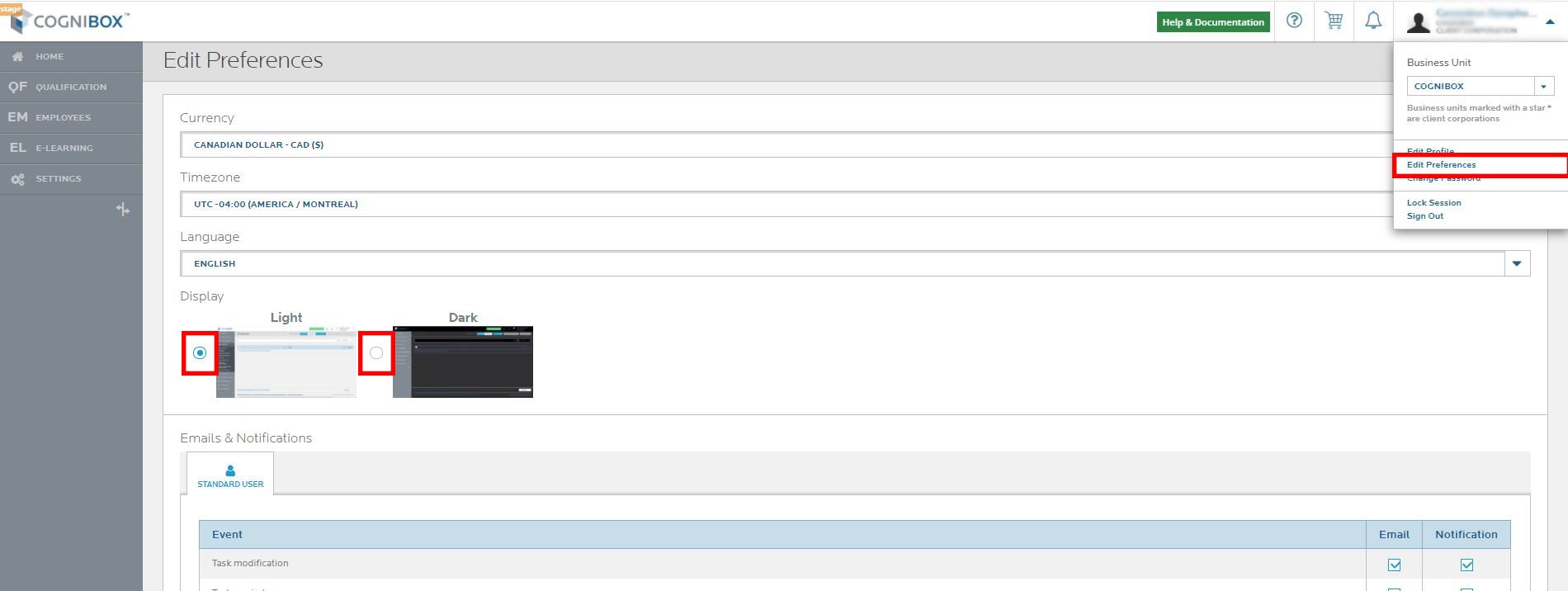
1. This selection can be made in the user preferences.

Click on your name on the right top corner, then on Edit Preferences. Select Light or Dark mode, and click on the Save button at the bottom of the page.

dark-mode-path-modifier-preference-en


2. This selection can also be made through the Settings tab.

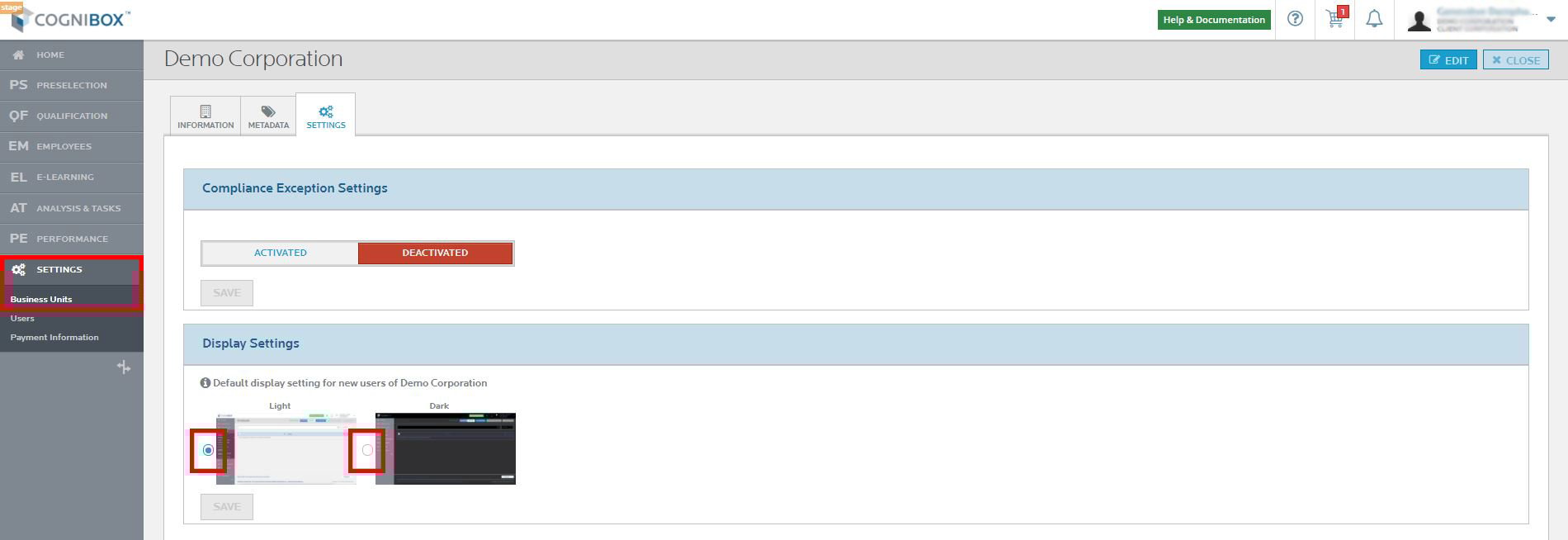
Whether you are a supplier or a client corporation, you can configure the default theme for your account. All users who access this account will see the interface in the mode that has been selected. Keep in mind that a user will be free to change the theme even if their employer chooses a different theme for new users.

Click on the Settings tab on the left menu, then on Business Units. Click on your company name. Click on the Settings tab. Select Light or Dark mode, and click on the Save button. 

dark-mode-path-settings-business-unit-en


These posts may be of interest to you

Cognibox-CMS

Cognibox CMS - Self-assessment in the PE module

The new self-assessment feature of the PE module now allows contractors to create their own...
Read more

Cognibox LMS - Improved registration of participants in the procedural activities

At the request of several users, we have improved the registration of participants in the...
Read more

Product Update - Contractor Dashboard Enhancement - Now available!

Watch the video below for a sneak peek to understand the benefits all Alcumus Cognibox Contractors...
Read more